Sign in →
Less setup. More padel.

Your first stream.
You’ve got this.

Pick your setup. We’ll take it point by point.

Step 1: Meet your match workspace.

Open a match from My matches. In the Live tab, leave the output on Padelboard Studio. This is your camera preview and scoring desk in one place.
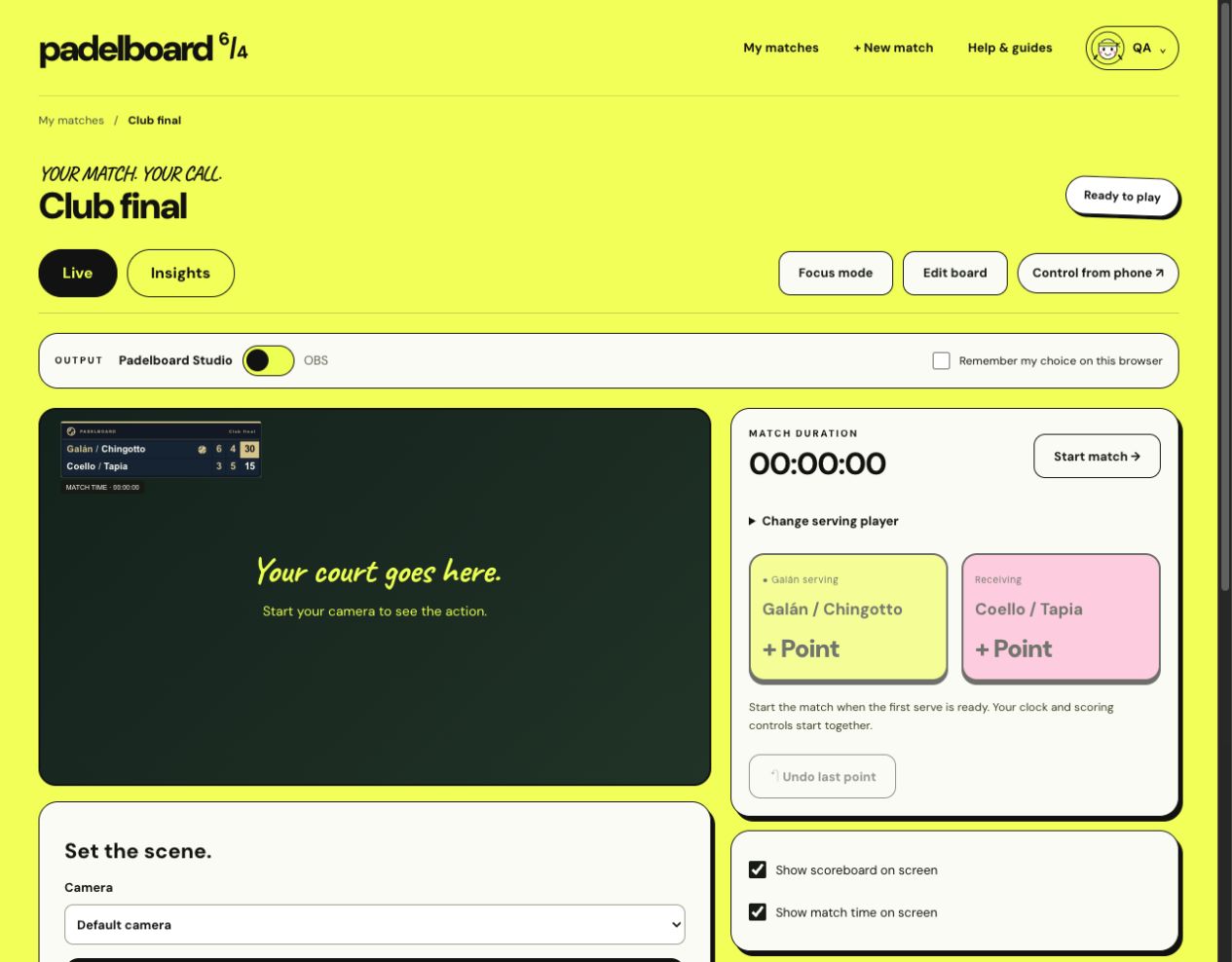
Studio selected in the output switch, with camera preview and scoring controls
Studio before the camera starts. Your match stays in the same workspace. Tap to enlarge ↗

Step 2: Set the scene.

Under Set the scene → Video source, choose Camera, then press Start camera and allow camera access. Drag the scoreboard into place and use Whole scoreboard size to scale the entire board.

Showing a replay or a remote broadcast? Choose Screen / window / tab as your video source, then press Choose screen. Open the video on this computer and select its tab or window in the browser picker. Keep it playing and tap points as you watch. Avoid capturing the Studio itself. Screen capture supplies video only; configure the original audio in your streaming service. This option needs a supported desktop browser.

Want a different look? Edit board lets you adjust the design. Press Save scoreboard to apply it.
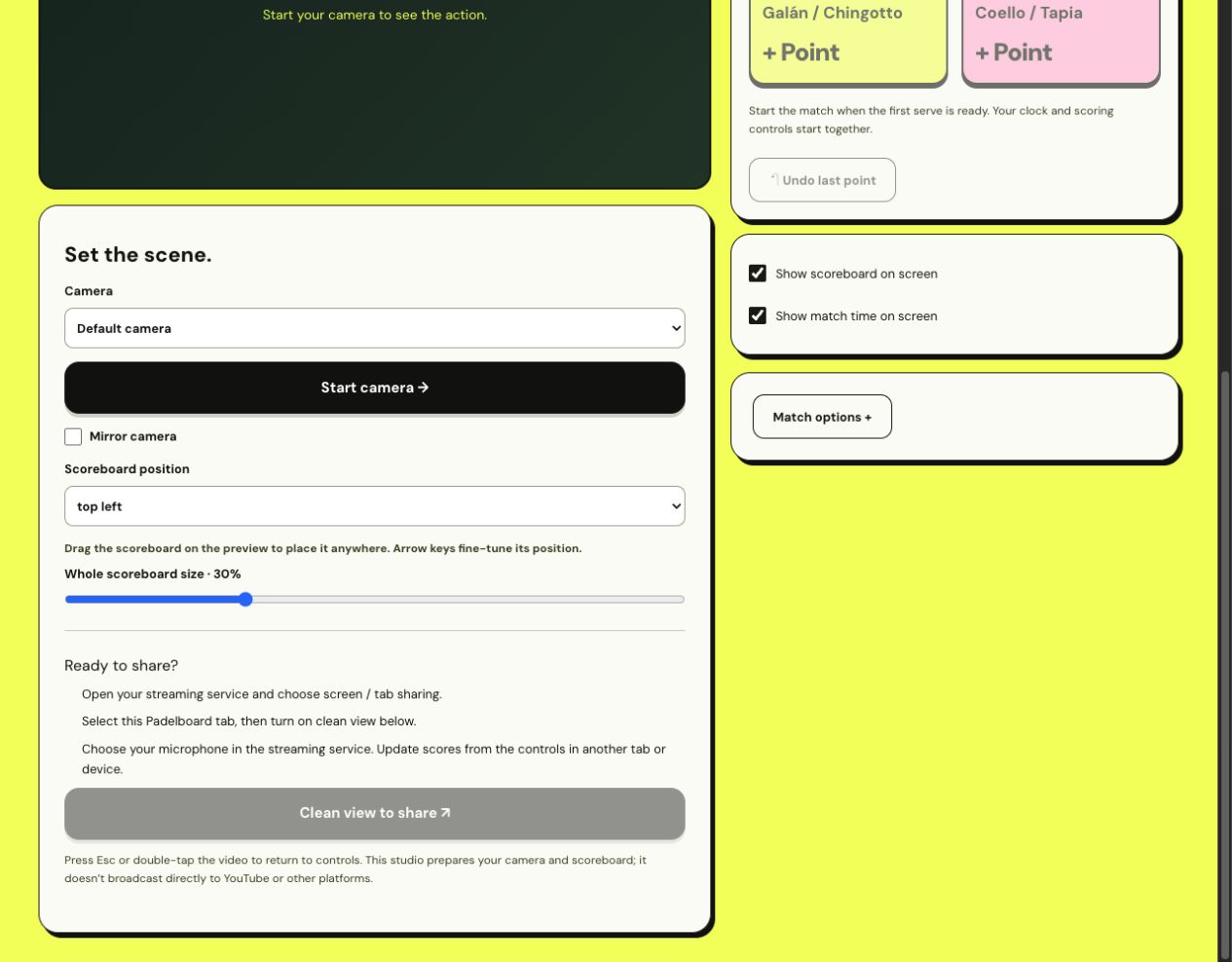
Camera selector, Start camera button, scoreboard position and size, and clean view controls
Camera, position and size live together. Clean view becomes available when the camera is ready. Tap to enlarge ↗

Step 3: Give your audience the clean view.

In your streaming service, choose screen or tab sharing and select the Padelboard tab. Back in Studio, press Clean view to share to show the camera and scoreboard without the controls.

A little audio check. Choose your microphone in the streaming service. Studio supplies the camera picture and scoreboard; it does not broadcast directly to YouTube or another platform, or capture your microphone.

Press Esc or double-click the video to return to your controls. Keep this tab open while sharing.

Step 4: First serve. You’re in control.

Choose the server under Change serving player, then press Start match when play begins. Tap + Point for the pair who won the point. Made a mistake? Use Undo last point.

Focus mode clears away setup controls. You can pause or resume the match clock and toggle Show scoreboard or Show match time whenever you need.
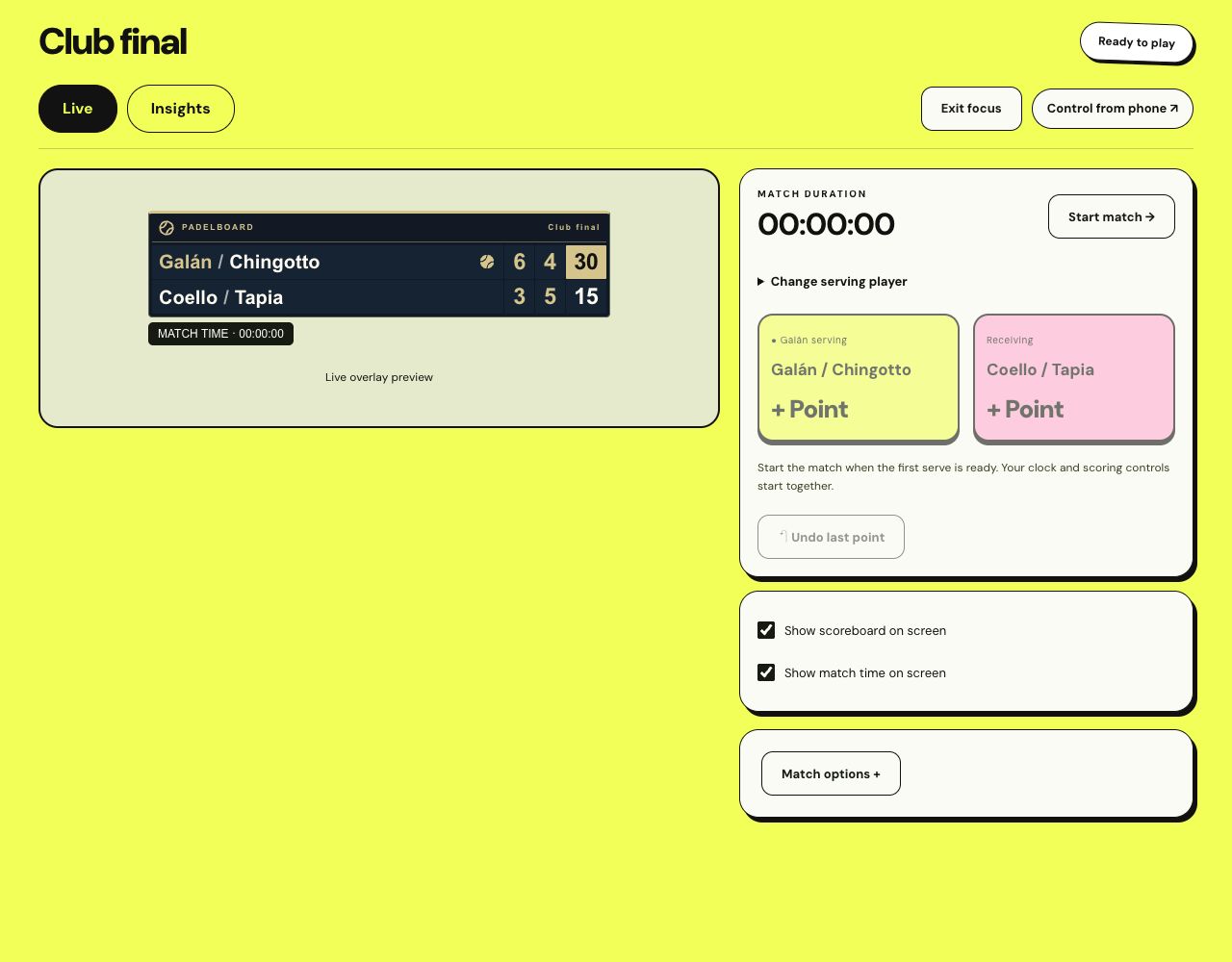
Focus mode with scoring buttons, serving player selector and scoreboard and match-time visibility controls
Focus mode, ready for the first serve. Scoring unlocks when you start the match. Tap to enlarge ↗
Prefer scoring courtside? Open Control from phone, scan the QR code and sign in to the same account on your phone. Keep the broadcast running on your computer. Your phone becomes the simple scoring remote.

Step 5: Call it a match.

Use Match options → End match and confirm when play is finished. Open Insights for the match summary, or find the match later in My matches → History.

Timing insights use the intervals between your scoring taps. They can include the time between rallies, so they are not exact rally durations.

Game. Set. Stream.Let’s play →
A little help courtside

Something not playing ball?

My camera won’t appear in Studio.

Check the browser’s camera permission for Padelboard, connect your camera and select it under Set the scene. Close other apps using it, then retry Start camera. Clean view stays disabled until the camera is ready.

I can’t see the scoreboard in OBS.

Check that your Browser Source uses the overlay link from the correct match, is visible, and sits above your camera. In Padelboard, turn on Show scoreboard on screen. If needed, open the source’s properties in OBS and use Refresh cache of current page.

Can I use my phone while the computer streams?

Yes. Use Control from phone and sign in as the match owner. Keep the computer, broadcast and internet connection running. The remote is for scores, serving, the clock and overlay visibility; full design setup stays in the match workspace.